
In a world where every pixel counts, having oversized photos on an iPhone can feel like carrying a suitcase full of bricks. Whether it’s for sharing on social media or saving precious storage space, knowing how to shrink those hefty images is essential. Luckily, shrinking photos on an iPhone isn’t rocket science—it’s more like a simple magic trick that leaves you wondering why you didn’t learn it sooner.
Understanding Photo Shrinkage
Managing photo size is crucial for enhancing smartphone usage. Shrinking photos can optimize storage space and streamline sharing.
Benefits of Shrinking Photos
Reducing photo sizes increases storage capacity on an iPhone. Less storage usage allows for more apps, music, and other media types. Smaller files facilitate quicker uploads to social media platforms, enhancing user experience. Users encounter fewer issues with email attachments, as many services impose size limits. Additionally, photo shrinkage can improve device performance by minimizing clutter.
When to Consider Shrinking Photos
Consider shrinking photos before sharing on social media. Large images can slow down uploads and become frustrating for users. When sending pictures via email, reduce sizes to meet attachment limits. Backup processes benefit from small file sizes, ensuring quicker uploads to cloud services. During trips or events, shrinking photos assists with managing storage space efficiently for capturing new memories.
Methods to Shrink Photos on iPhone
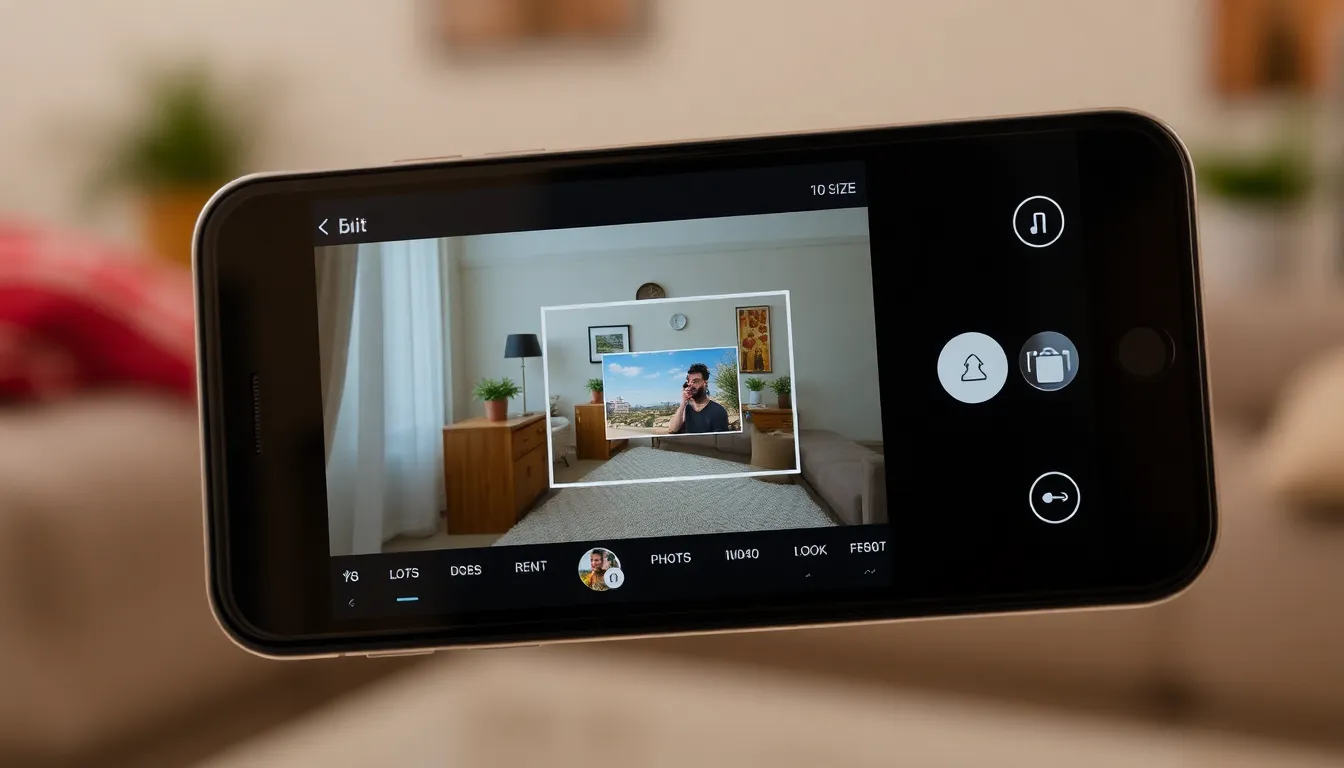
Shrinking photos on an iPhone can enhance storage and facilitate sharing. Users can achieve this through various methods.
Using Built-In Photos App
The Photos app on iPhone offers a simple way to resize images. Select the desired photo and tap “Edit,” then choose “Crop.” Adjust the dimensions using the corner handles. Save the changes to create a smaller version of the image. Another option is to use the “Export” feature, found in the share menu, where users can select lower resolution options. This approach effectively reduces photo size while maintaining reasonable quality.
Using Third-Party Apps
Third-party apps provide additional tools for shrinking photos. Applications like Compress Photos or Image Size offer user-friendly interfaces to resize images quickly. Download one from the App Store and open it. Users can either select photos from their library or capture new ones. Adjust the desired resolution or size percentage before saving the compressed images. Many of these apps also retain the original photos, allowing users to choose when and what to compress without losing data.
Step-by-Step Guide for Each Method
Reducing photo sizes on an iPhone is straightforward with various methods available. Here’s how to effectively shrink images using the built-in Photos app and third-party apps.
Shrinking Photos with Built-In Photos App
- Open the Photos app on your iPhone.
- Select the photo you wish to resize.
- Tap the “Edit” option at the top right corner.
- Use the “Crop” feature to adjust the dimensions.
- Save your changes by tapping “Done” at the bottom right.
Resizing can also occur through the “Export” option, allowing for lower resolution images suited for sharing.
Shrinking Photos with Third-Party Apps
- Download an app like Compress Photos or Image Size from the App Store.
- Launch the chosen app and select the photos to resize.
- Choose the desired dimensions or compression level.
- Preview the resized images before saving them back to your phone.
Third-party apps often provide more flexible options, ensuring users maintain quality while reducing file sizes.
Tips for Effective Photo Shrinking
Shrinking photos effectively requires attention to detail, particularly regarding image quality and file format. Users can maximize their results by following these tips.
Maintaining Image Quality
Preserving image quality during resizing enhances overall visual appeal. Use the built-in Photos app to adjust the image dimensions while keeping essential features intact. Third-party apps often offer compression settings that allow users to retain details despite smaller file sizes. Make regular comparisons between original and resized versions to ensure clarity remains high. Selecting a lower compression ratio can also help maintain quality, giving priority to the integrity of the image over file size alone. Achieving a balance between size reduction and quality preservation leads to optimal results.
Choosing the Right File Format
Selecting the appropriate file format influences both the quality and size of the image. JPEG formats are commonly used for sharing photos due to their smaller sizes and decent image quality. PNG formats, while larger, offer better quality for images requiring transparency or sharper details. Consider the purpose of the photo when deciding on a format. For online sharing, JPEG often suffices. In contrast, PNG works better for images needing fine detail preservation. Understanding the differences between formats allows users to make informed decisions that suit their needs.
Shrinking photos on an iPhone is a valuable skill that can significantly enhance the user experience. By reducing image sizes, users can free up storage space and streamline the sharing process. Whether using the built-in Photos app or opting for third-party applications, the methods outlined make it easy to manage photo sizes effectively.
With a few simple steps, anyone can ensure their device runs smoothly while maintaining the quality of cherished memories. Embracing these techniques not only simplifies photo management but also makes sharing moments with friends and family a breeze. Adopting these practices will undoubtedly lead to a more organized and efficient digital life.


